
Quick answer
To play Bloodborne natively on Windows 10 or 11:
- Check that your PC has a CPU with AVX (Intel 4th gen Haswell or newer, or any AMD Ryzen) and a GPU that supports Vulkan 1.3.
- Make a decrypted dump of your own copy of Bloodborne (CUSA03173) and update it to version 1.09.
- Download the latest Windows zip of Supermedo’s bloodborne_pc (best for beginners) or Awaken’s Lantern Engine from GitHub Releases.
- Extract it, run
Bloodborne.exe(orLantern Engine.exe), select the game folder that containseboot.bin, and press Play.
No game files come with either port. They only work with a game dump you make yourself.
What is the Bloodborne “native” PC port?
It is an unofficial, fan-made project. It is not an official PC release, and neither Sony nor FromSoftware is involved. It is also different from emulation with shadPS4:
- The game’s own x86-64 code runs directly on your CPU. The PS4 and PCs use the same kind of processor, so this works.
- The graphics are translated to Vulkan. This part uses the renderer from the shadPS4 project.
- It started as bbport, a native Linux port made by deadinside28. Windows versions were then built on top of it.
Two Windows projects are the main ones:
| Supermedo’s bloodborne_pc | Awaken’s Lantern Engine | |
|---|---|---|
| GitHub | github.com/Supermedo/bloodborne_pc | github.com/Awakenchan/LanternEngine (the uploaded copy of Awaken’s page is titled Lantern Engine, and the BloodBorneButPc link you gave belongs to the same author) |
| Platforms | Windows 10/11 | Windows and Linux |
| Beginner features | Guided first start, a simple or expert view, 13 languages, settings based on your goal, a help page that checks your installation | A simple launcher: choose your folder and press Play |
| Upscalers | DLSS, FSR 3.1/4, native TAA, AMD ML frame generation on RX 9000 cards | DLSS (Windows only), FSR 3.1/4/4.1.1 |
| Online | The Hunter’s Dream plus a shadNet server for co-op | Online through The Hunter’s Dream |
| Updates | One-click updates in the launcher. The latest release is 1.9.3 (October 20, 2026), which fixed online play and improved settings for laptops | The launcher updates itself on Windows. The author says updates are slower now |
Recommendation for beginners: use Supermedo’s bloodborne_pc. Its guided setup and built-in troubleshooting are designed for first-time users. Most of this guide follows it, and the Lantern Engine steps are in a section below.
Step 1: Check your PC’s requirements
| Component | Minimum |
|---|---|
| OS | Windows 10 (version 1903 or later) or Windows 11, 64-bit |
| CPU | Intel Core 4th gen (Haswell, 2013) or newer, or any AMD Ryzen. The CPU needs AVX, BMI1, MOVBE and LZCNT support |
| GPU | Any graphics card that supports Vulkan 1.3, with an up-to-date driver |
| Memory | About 6 GB free (RAM plus page file). You need about 10 GB for 1440p or 4K output |
| DLSS | NVIDIA GeForce RTX 20 series or newer |
| Storage | At least 40 GB free is recommended. The base game alone is about 30 GB |
Important CPU notes:
- Intel 2nd and 3rd gen CPUs (Sandy Bridge and Ivy Bridge) work only on a “best effort” basis, because some instructions have to be translated.
- CPUs without AVX cannot run it. This includes many Pentium and Celeron models.
Beginner tip: Update your graphics driver from the NVIDIA, AMD or Intel website before you start. An old driver is one of the most common reasons for a black screen or a crash.
Step 2: Prepare your own Bloodborne game dump
This is the step beginners find hardest. The ports need a decrypted dump of the game made from a copy you own. Both projects say clearly that they include no game files. Downloading game files you don’t own is piracy, and this guide does not cover it.
What you need
- The base game: Bloodborne, title ID CUSA03173 (the Game of the Year edition).
- Update 1.09: this is required. Without it, the community patches (60, 90 or unlocked FPS, resolution and effect options) won’t work, and the game is locked to 30 FPS.
- The Old Hunters DLC (optional): the GOTY edition (CUSA03173) already includes it, so you only need a separate dump if you have the base game alone.
How to build the game folder
If you have PKG files dumped from your own console, setup videos show the usual process:
- Extract each PKG (base game, then update, then DLC if you have it) with a PS4 PKG extractor tool. A common way is to drag the PKG file onto the extractor. The base game is large, so wait for it to finish completely.
- Merge the update: open the folder extracted from the 1.09 update, select everything, copy it, and paste it into the main game folder (the one ending in …03173). When Windows asks, choose Replace the files in the destination.
- Check the result:
eboot.binmust be directly inside the main game folder. The launcher looks for this file. - Keep your original PKG files until the game runs properly, so you don’t have to dump everything again if something went wrong.
DLC on a base-game dump
Dump your add-ons as well. Each one is a folder named something like SPEXPANSIONDLC03 with only sce_sys inside, because the DLC data is part of the 1.09 update. You can then either:
- put them in one folder and choose it as the DLC folder on the Game & effects page, or
- copy them to
user\addcont\<title id>\(the same layout shadPS4 and bbport use).
Step 3: Download Supermedo’s bloodborne_pc
- Go to github.com/Supermedo/bloodborne_pc and click Releases on the right side.
- Under the latest version, open Assets and download the Windows zip.
- Extract the zip to a folder where the game will stay permanently, for example
D:\Games\Bloodborne. Avoid running it from inside the zip or from your Downloads folder. - Optional: move your prepared CUSA03173 game folder next to it, so everything is in one place.
You don’t need to install anything else. The zip contains everything the game needs, including Visual C++ runtimes, Vulkan components and SDL. Some older shadPS4 guides tell you to install Visual C++ redistributables, but this port doesn’t need them.
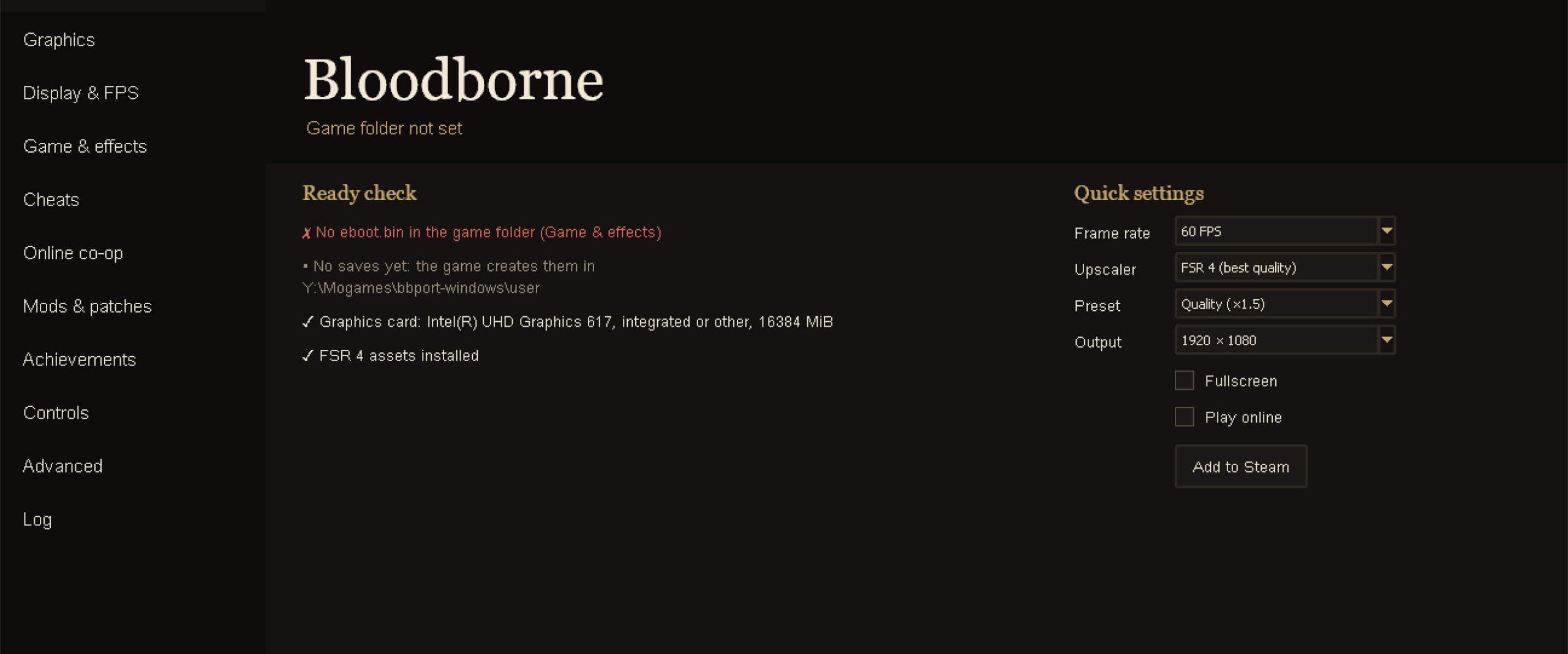
Step 4: First launch and the guided setup
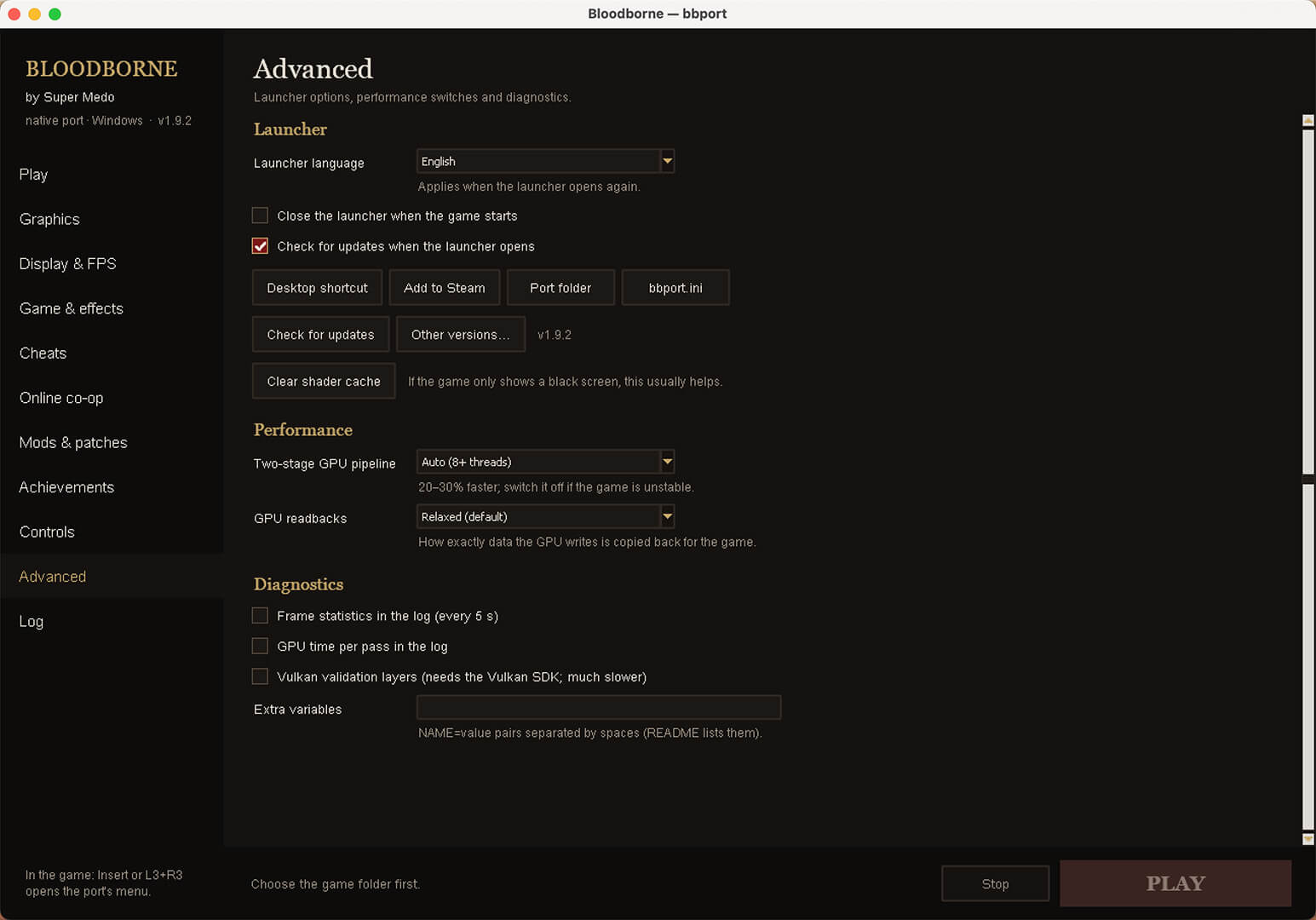
- Double-click
Bloodborne.exe. - The first time, a five-step guide opens and:
- checks your game files (a clean 1.09
eboot.binand a complete folder) and your PC, - sets the picture for your hardware and the goal you choose,
- sets up your keyboard or controller,
- imports your character from other versions (shadPS4, Awaken’s port, bbhost or a PS4 save export), after backing up your existing saves first,
- signs you in for online play (you can skip this).
- When asked for the game folder, choose the folder that contains
eboot.bin(the …03173 folder). You can change it later under Game & effects → Game folder → Browse. - Press PLAY.
Tip: Leave the launcher in Simple view at first. It shows only the pages a player needs and sets technical options for you. The switch to Expert view is at the bottom of the sidebar.
Step 5: Pick the best graphics and FPS settings
Choose a goal instead of individual settings
The launcher offers three goals and sets everything else based on your hardware:
| Goal | Result | Best for |
|---|---|---|
| Smooth | Up to 120 FPS | High-refresh monitors, strong GPUs |
| Balanced | 60 FPS with the best picture | Most players |
| Quiet | 60 FPS with less GPU load | Laptops, smaller PCs, lower temperatures |
Use “Measure on this PC” to test these settings in the game on your own hardware.
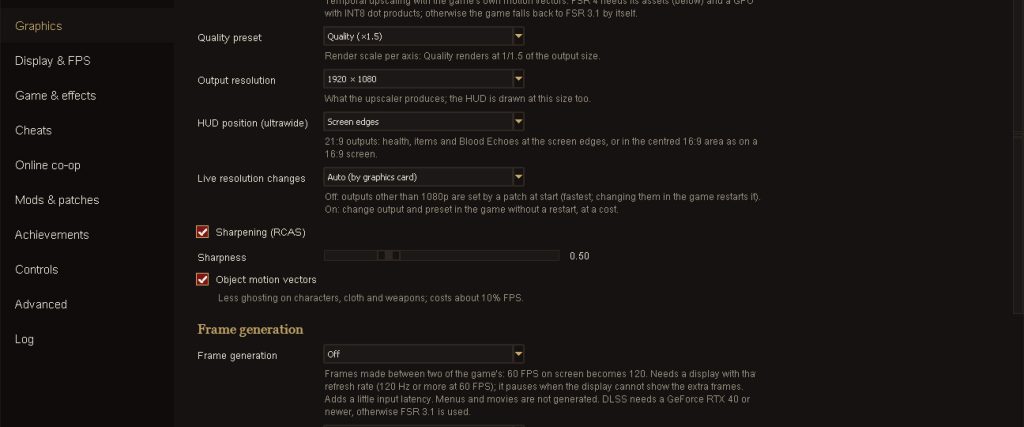
Manual settings (Graphics tab)
- Upscaler:
- DLSS on NVIDIA RTX 20 series and newer,
- FSR 3.1 or FSR 4 on AMD or other GPUs,
- TAA at Native if your GPU is strong enough and you want the sharpest picture without upscaling.
- Preset: the range goes from Native AA to Ultra Performance. Choose a lower preset if you need more FPS.
- Output resolution: set it to your monitor’s native resolution (for example, 1920×1080 on a 1080p screen). The port supports 720p up to 4K.
- Live resolution changes: one guide recommends turning this off.
Display & FPS tab
- Choose 30, 60 or 90 FPS, or Unlocked with a frame cap. If you choose Unlocked, setting the frame cap to Auto is recommended.
- Keep the frame cap at 120 FPS or lower. A sprint bug above 90 FPS has been fixed, but the developers haven’t fully checked the game’s timing above 120 FPS.
- Set Window mode to fullscreen.
Game & effects tab
- You can turn chromatic aberration, depth of field, motion blur, SSAO, the game’s own AA, dynamic light shadows, screen-space reflections and model detail on or off.
- Field of view can go from 30 to 90 degrees (the game’s default is 43).
- Under Extras, turn on Skip intros to start faster.
Step 6: Set up your controller or keyboard
- Controller: plug in your DualShock 4, DualSense or Xbox controller before you start. On an Xbox controller, Back + D-pad left or right clicks the left or right half of the touchpad (for gestures and key items).
- In-game settings menu: press Insert, or L3 + R3 on a controller.
- Default keyboard controls:
| Action | Key |
|---|---|
| Move / Camera | WASD / arrow keys |
| Cross / Circle / Square / Triangle | Space / Left Shift / E / V |
| L1 / R1 | 1 / 3 |
| L2 / R2 | R / F |
| Lock-on (R3) | Q or C |
| D-pad | I / K / J / L |
| Options | Enter |
On the Controls page you can remap up to three keys per action, use a Dark Souls III layout, turn on mouse look, and use a direct 1:1 mouse camera. Advanced users can also edit input.ini, which uses shadPS4’s syntax.
Step 7 (optional): Play online
The port supports messages, bloodstains, wandering ghosts, and summoning with the bells.
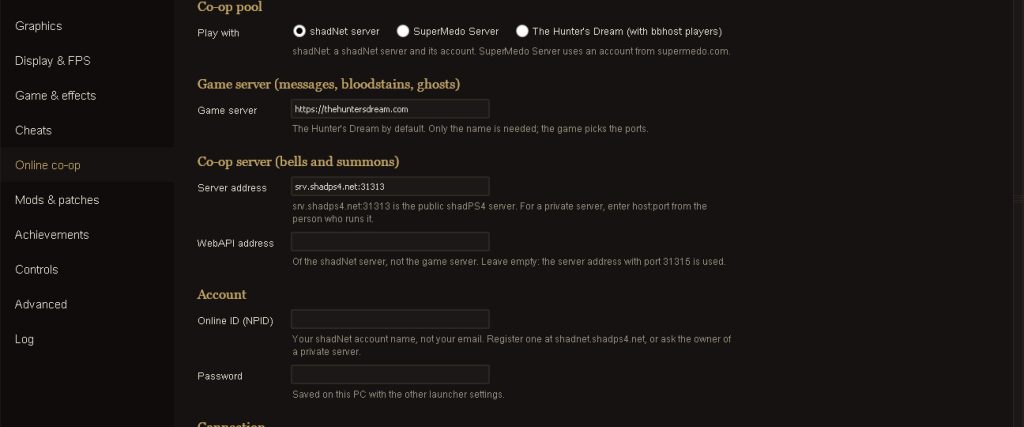
- Register an account at shadnet.shadps4.net.
- In the launcher, open Online co-op, tick Play online, and enter your account name (not your email) and password.
- Click Test connection. All three lines should say “reachable.”
- Press PLAY and choose online at the title screen. If you see the The Hunter’s Dream welcome message, you’re online.
Everyone you play with needs version 1.09 and the same co-op server. Online play is still in beta. For help with this port, use the project’s Discord, not The Hunter’s Dream’s support channels.
Step 8 (optional): Add it to Steam, mods and remasters
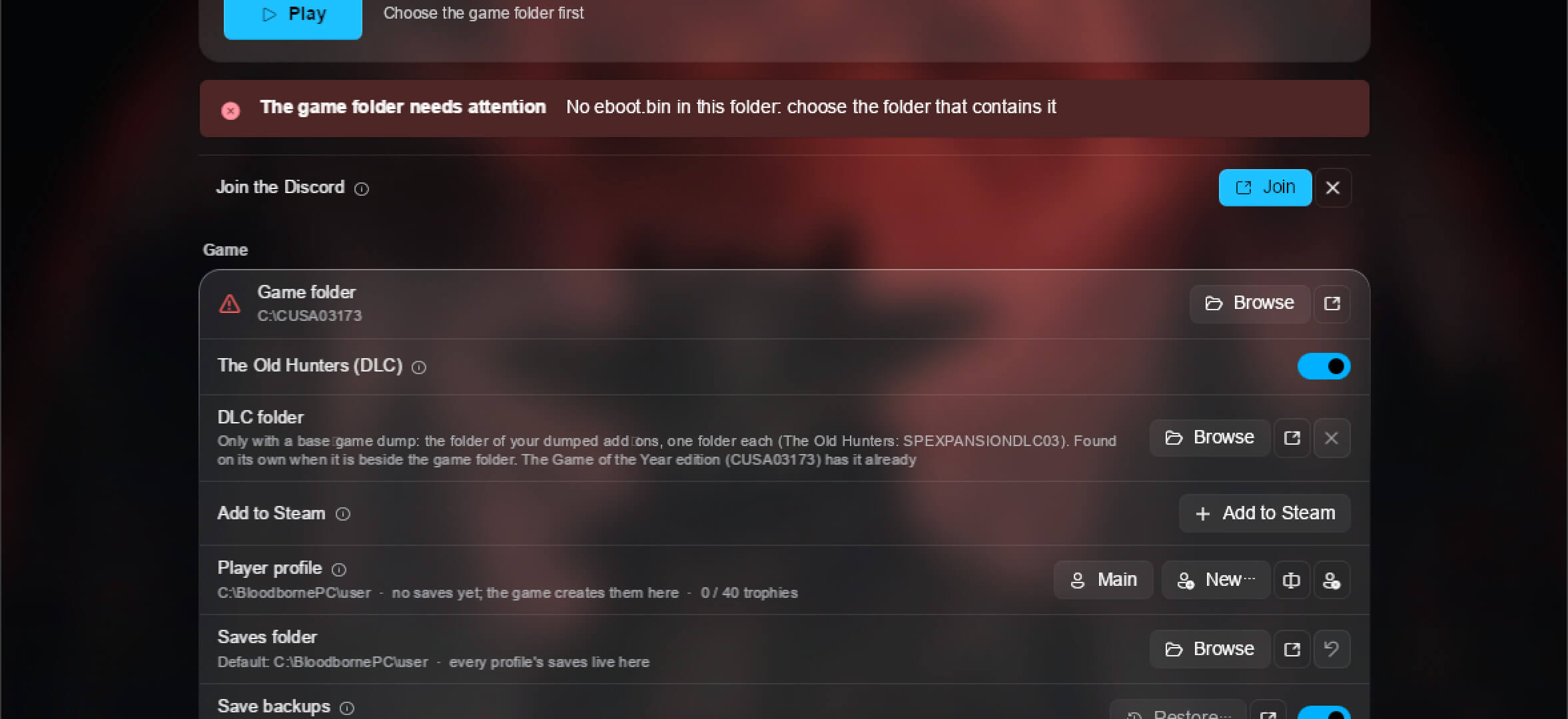
- Add to Steam: this button puts the game in your Steam library with one click.
Play Bloodborne.exestarts the game directly with your saved settings, which works well as a desktop shortcut. - Mods and patches: these load without changing your game files. The port supports the same kinds of mods as shadPS4, including ones from Nexus Mods.
- Bloodborne PC Remaster: PC Master Race Latinoamérica reported that the native port now works with PC Remaster 1.10 (better visuals, DLSS, unlocked FPS, ultrawide, keyboard and mouse, and online). If you want to use it, read the mod’s own instructions for compatibility.
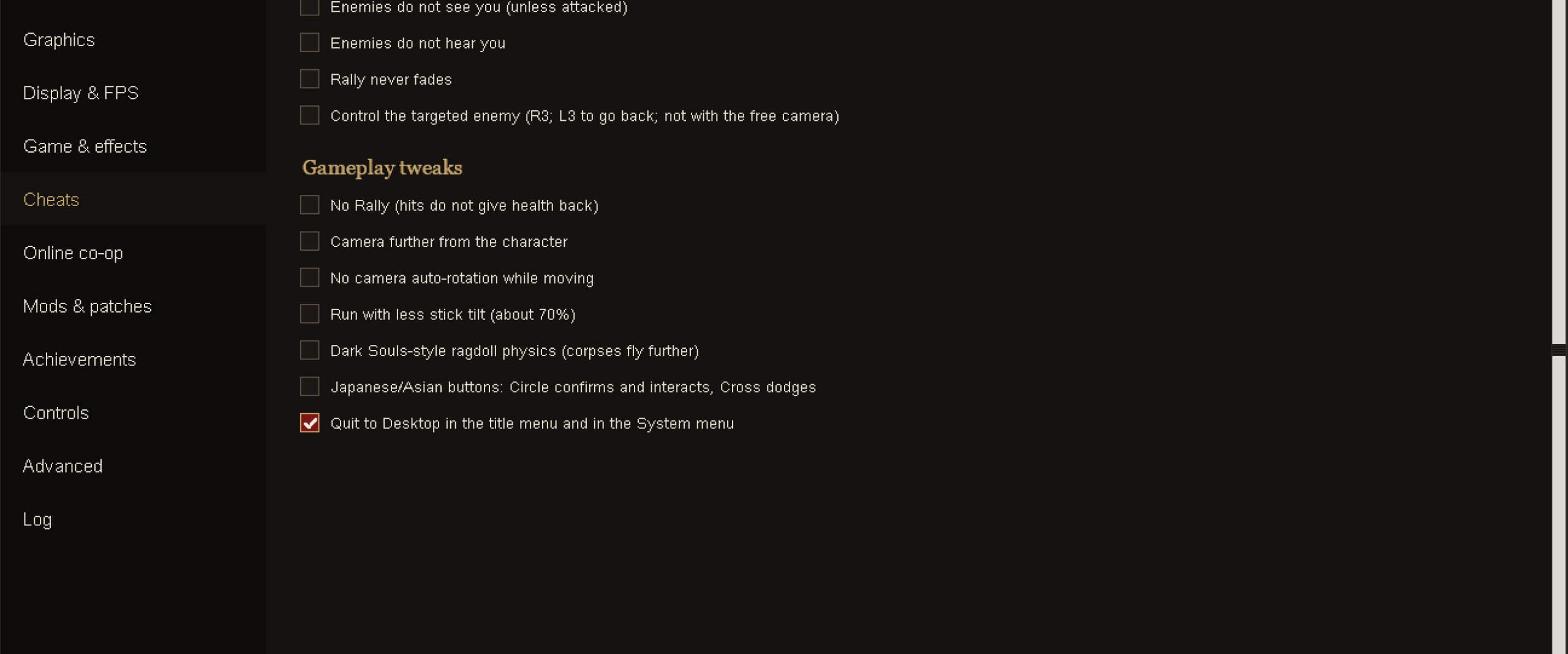
- Cheats page (offline fun): options include never dying, stealth, Rally that never fades, camera distance, and the Japanese button layout.
Alternative: setting up Awaken’s Lantern Engine
- On github.com/Awakenchan/LanternEngine, go to Releases and download
LanternEngine-<version>-win64.zip. - Extract it anywhere.
- Run
Lantern Engine.exeand choose your game folder (the one witheboot.bin). - Press Play. The launcher updates itself.
Bloodborne.exestarts the game directly, and you can add it to Steam as a non-Steam game.
It has the same requirement as Supermedo’s port: your own decrypted CUSA03173 dump with update 1.09.
Troubleshooting common problems
| Problem | Fix |
|---|---|
| Black screen | Advanced → Clear shader cache, then update your GPU driver |
| Stuck at 30 FPS / patches unavailable | Your game isn’t on 1.09. Merge the 1.09 update into the base folder again and replace the files |
| Launcher says the folder is wrong | Choose the folder that has eboot.bin directly inside it, not a folder above it |
| Crash when the game world loads (AMD) | This is a known issue on some AMD cards, especially RDNA2. See docs/WINDOWS_TROUBLESHOOTING.md and send user\last_run.log to the developers |
| Game won’t start on an old Pentium or Celeron | Your CPU probably lacks AVX, so the game can’t run on it |
| Out-of-memory crashes at 1440p or 4K | Make your Windows page file bigger so you have about 10 GB of free memory, or lower the output resolution |
| Online errors | Run Test connection, check that you used your account name (not your email), and confirm everyone uses the same server |
| Anything else | Open the Help page. It checks your installation and, after a crash, names the cause. “Save a report” creates a zip you can share on Discord |
FAQ
Is Bloodborne officially on PC?
No. These are unofficial fan projects, and Sony and FromSoftware have nothing to do with them.
Is this an emulator?
Not exactly. The game’s CPU code runs directly on your PC, and only the graphics go through a translation layer (shadPS4’s Vulkan renderer). That is why it’s called a native port. Some people describe it as closer to a recompilation.
Do I need to own Bloodborne?
Yes. Both ports need your own decrypted dump (CUSA03173, v1.09) and include no game files.
Can I get 120 FPS?
Yes, if you use version 1.09 and your PC is powerful enough. Choose the Smooth goal or Unlocked with a 120 FPS cap. Don’t go above 120.
Does it support DLSS?
Yes, on NVIDIA RTX 20 series and newer cards. AMD and other GPUs can use FSR 3.1 or FSR 4.
Can I keep my shadPS4 save?
Yes. Supermedo’s launcher finds and imports saves from shadPS4, Awaken’s port, bbhost and PS4 exports, and backs up your existing saves first.
Does it work on Steam Deck or Linux?
Lantern Engine and the original bbport support Linux, including SteamOS 3.6 and Bazzite. Supermedo’s fork is made for Windows 10/11.
Is the game complete from start to finish?
Many people play through it, but Wccftech pointed out that the port hadn’t been fully tested from beginning to end, so problems can still appear later in the game. Report bugs with your last_run.log file.