
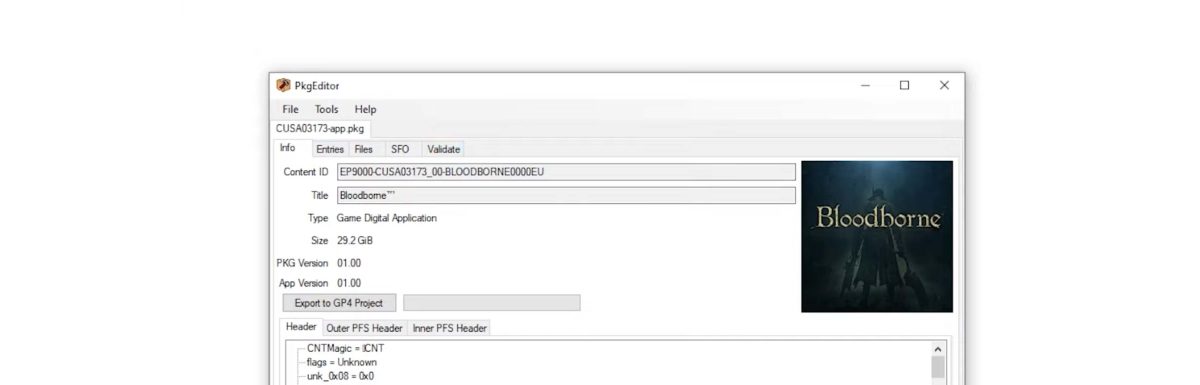
The shadPS4 QtLauncher is the new and improved way to manage, install, and run PlayStation 4 games with the shadPS4 emulator. This standalone launcher replaces the legacy integrated UI and gives users a faster, cleaner, and more flexible way to organize multiple emulator versions, install PKG files, and optimize gameplay performance.
This step-by-step guide explains how to setting up The official Qt launcher for ShadPS4 emulator on PC, and add your Bloodborne games, configure settings, and launch titles efficiently. If you’re new to shadPS4 or migrating from older builds, this tutorial will help you get started quickly.
Here is a step-by-step tutorial on how to set up the ShadPS4 QT Launcher to play Bloodborne on PC.
Table of Contents
What Is the shadPS4 QtLauncher?
The QtLauncher is a dedicated frontend application designed specifically for shadPS4. Instead of packaging the UI inside the emulator itself, the launcher now manages:
Emulator installation and updates
Game library organization
PKG installation
Per-game configuration
Multiple shadPS4 versions
This separation makes updates smoother, improves stability, and allows advanced users to assign different builds to individual games for better compatibility.
Step 1: Prerequisites for Running Bloodborne on a PC
Running Bloodborne on a PC is significantly more demanding than most PlayStation 4 titles. Because the game relies heavily on PS4-specific APIs and advanced GPU features, proper hardware, software configuration, and emulator setup are essential for even basic functionality. This guide outlines the minimum and recommended prerequisites you should meet before attempting to run Bloodborne using shadPS4. Running Bloodborne on PC using shadPS4 requires high-end hardware, modern GPU drivers, and the latest emulator builds. While progress continues, the game remains experimental and should be treated as a technical preview rather than a finished experience. Ensuring that all prerequisites are met will give you the best possible chance of booting and testing the game successfully.
- Hardware Requirements
Minimum PC Specifications (Experimental / Boot-Level Only)
These specifications may allow the game to boot but not run smoothly.
CPU:
Intel Core i5 (8th generation or newer)
AMD Ryzen 5 (3000 series or newer)
GPU:
NVIDIA GTX 1660 / RTX 2060 or higher
AMD RX 5600 XT or higher
Vulkan 1.3 support is mandatory
RAM:
16 GB DDR4
Storage:
SSD strongly recommended (50+ GB free space)
Recommended PC Specifications (Best Current Experience)
For better stability and higher frame pacing:
CPU:
Intel Core i7 / i9 (10th gen or newer)
AMD Ryzen 7 / Ryzen 9 (5000 series or newer)
GPU:
NVIDIA RTX 3070 / 3080 / 4070 or better
AMD RX 6800 XT / RX 7800 XT or better
RAM:
32 GB DDR4 or DDR5
Storage:
NVMe SSD
- Operating System Requirements
Windows 10 or Windows 11 (64-bit only)
Linux support exists but is more experimental and requires advanced Vulkan configuration.
Make sure your OS is fully updated, especially GPU drivers.
- GPU Driver & Vulkan Requirements
Bloodborne requires advanced Vulkan functionality due to its heavy reliance on GPU compute and memory synchronization.
Required:
Latest Vulkan 1.3 compatible drivers
Fully updated NVIDIA or AMD drivers
Outdated drivers are one of the most common causes of crashes or black screens.
- Software & Dependencies
ShadPS4 Emulator: You need the Qt Launcher version (GUI version) of the emulator.
Version: The video specifically uses a Pre-release / Nightly build. Older stable builds may not boot the game.
Microsoft Visual C++ Redistributable: Required to run the emulator (Visual C++ 2022).
Modding Tools:
BB Launcher (Mod Manager): Essential for injecting external fixes that the emulator’s built-in patcher cannot handle (like physics fixes). - Emulator Requirements (shadPS4)
To attempt Bloodborne, you must use:
Latest shadPS4 build, managed through the QtLauncher
Vulkan backend enabled
Debug logging enabled (recommended for troubleshooting)
Older emulator versions generally fail to boot Bloodborne.
- Game Dump Requirements
Bloodborne must be properly dumped from a legitimate PlayStation 4 copy.
Required files:
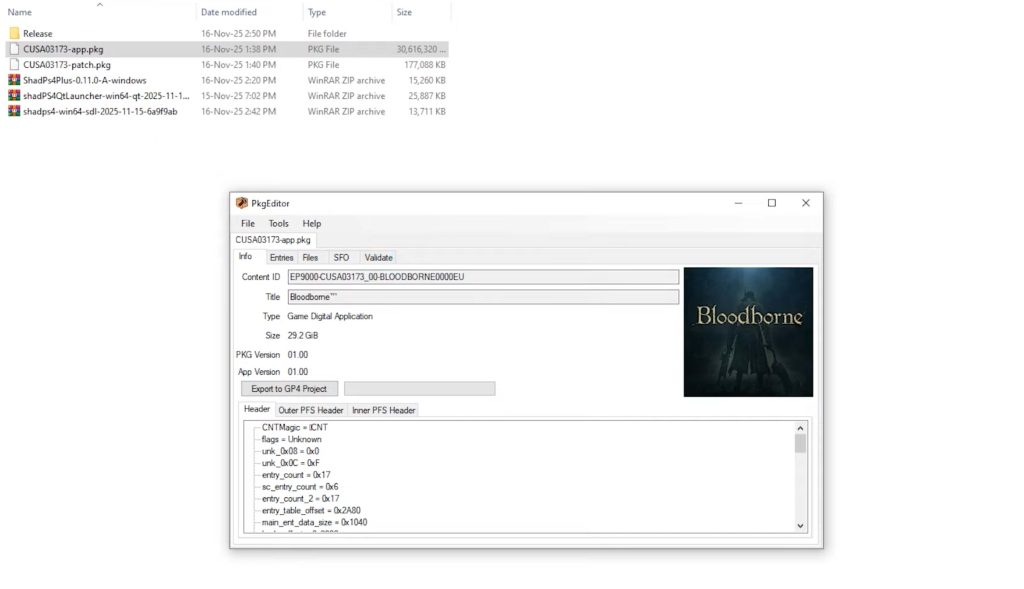
Bloodborne Game File (.pkg): You must own a legally dumped copy of the game in .pkg format.
Note: The video shows the extraction of a decrypted .pkg file.
Update File: The v1.09 Update .pkg is required for compatibility with most mods and patches.
Make sure: The dump is not corrupted
The update PKG matches the game region
The installation completed without errors in the QtLauncher
- Memory & Cache Considerations
Bloodborne is memory-intensive.
Recommended emulator settings:
Enable shader cache
Enable texture cache
Avoid background applications
Disable overlays (Discord, Steam, etc.)
Insufficient memory can cause shader compilation stalls or emulator crashes.
- Known Limitations (Important)
Even with all prerequisites met:
Bloodborne is not fully playable
Performance varies significantly between systems
Visual artifacts may occur
Frame pacing is unstable
Some gameplay systems may not function correctly
Meeting the prerequisites does not guarantee smooth gameplay, only the ability to test or boot the title.
- Stability Tips Before Launching
Before starting Bloodborne:
Reboot your system
Launch shadPS4 with administrator privileges
Close unnecessary background software
Use default graphics settings initially
Avoid custom patches or mods
Step 2: Download and install the shadPS4 QtLauncher
- Download the latest QtLauncher
Follow these steps to download and install the newest QtLauncher:
Visit the shadPS4 download page or GitHub repository.
Download the latest QtLauncher ZIP package for your operating system.
Extract the folder and run shadPS4QtLauncher.exe.
On first launch, the interface will appear empty—this is normal.
The launcher will prompt you to download your first emulator build.
- Install a shadPS4 Emulator Version
The QtLauncher requires at least one emulator build to run any PS4 game.
Click Download Version.
Choose Download and install the latest Pre-release version available in the list ( recommended build ).
Press Install.
The launcher will automatically download and configure the emulator files, so you don’t need to manage folders manually.
You can repeat this step anytime to install older or experimental builds for specific games.
Step 3: Add Your Bloodborne Game Files
.
Open ShadPS4 QtLauncher.
There are multiple ways to extract your Bloodborne .pkg file. The easiest method is using the emulator itself, the QtLauncher includes a streamlined installer for PlayStation 4 packages.
Go to Tools → Install PKG.
Select your Bloodborne .pkg file and choose a destination folder to extract the files.
After the base game installs, repeat the process for:
Update The v1.09 Update .pkg file.
All installed titles will appear in the library with icons and metadata.
Step 4: Configure ShadPS4 QtLauncher Before running Bloodborne
- Switching ShadPS4 Versions for Bloodborne
Bloodborne may run better on different shadPS4 builds.
The QtLauncher makes version switching easy:
Right-click any game.
Choose Select Emulator Version.
Pick the version you want to associate with that game.
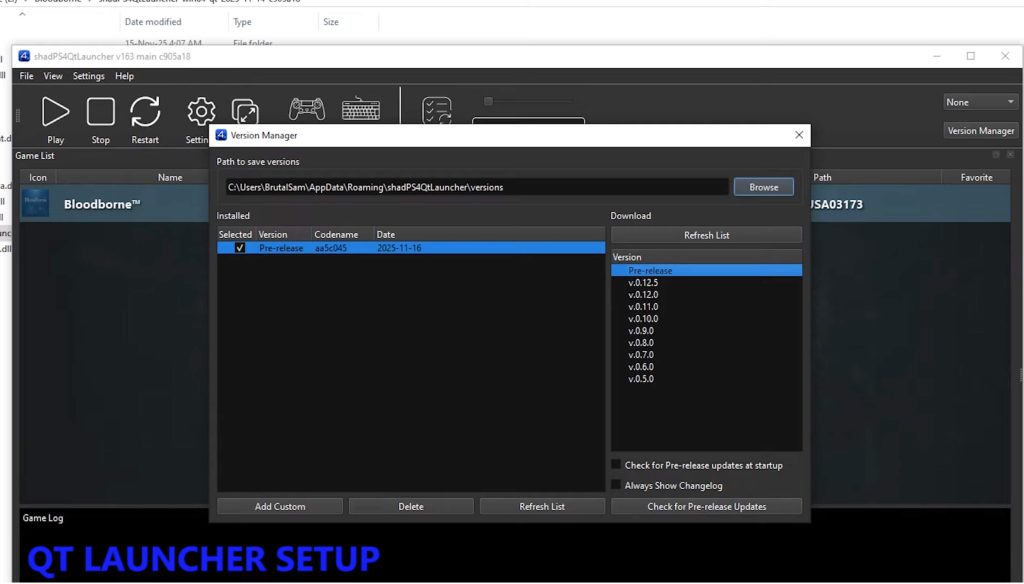
This feature is extremely useful for improving stability and performance on a per-title basis.
- Configure Graphics Settings
Click on Settings in the main toolbar.
Navigate to the Graphics tab.
Set the Graphics Device to use your primary GPU (Vulkan is recommended).
Set Present Mode to Mailbox (Vsync) or Immediate (No Vsync) depending on your preference.
Set the Window Size (e.g., 1920×1080). - Apply Essential Patches for Bloodborne
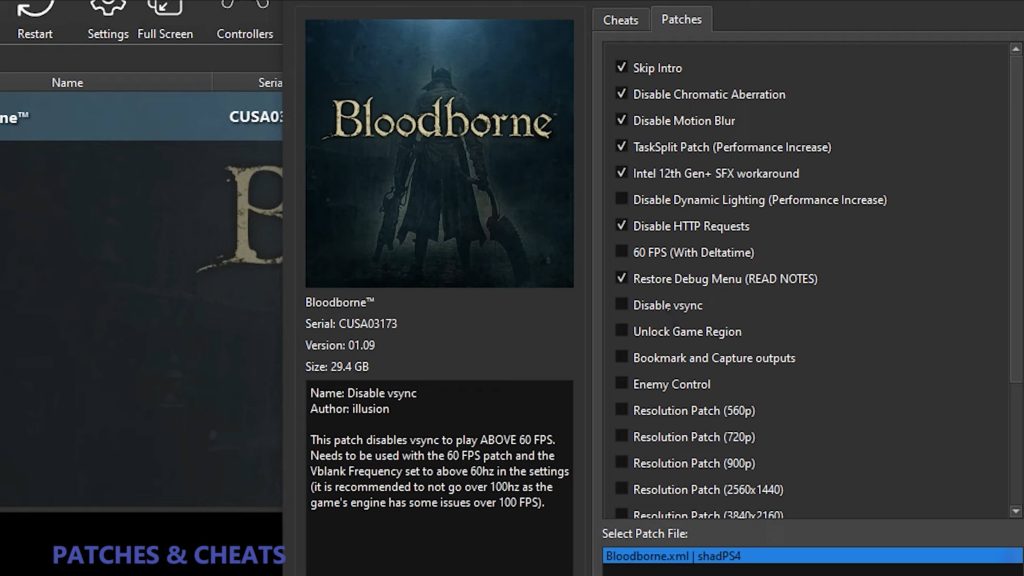
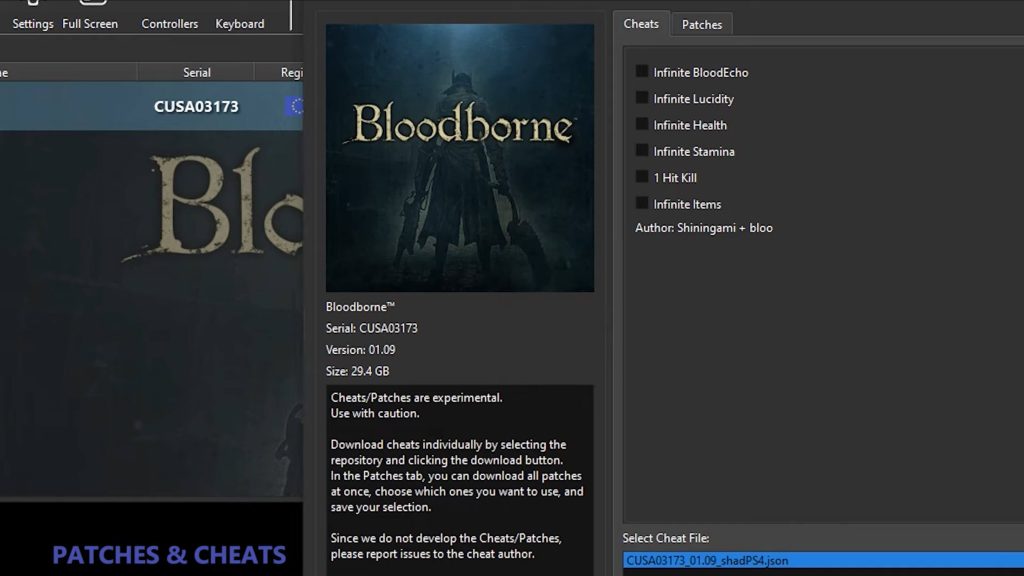
Right-click Bloodborne in your game list and select Cheats / Patches.
Click Download Patches to fetch the latest community fixes.
Enable the following patches:
Skip Intro (Speeds up boot)
Disable Chromatic Aberration & Motion Blur (Visual clarity)
TaskSplit Patch (Performance increase)
Disable Dynamic Lighting (Performance increase)
60 FPS (Essential for smooth gameplay)
Resolution Patch (Select 720p or 900p for stability)
Click Save.
- Setup Controls
Go to Settings > Input.
If you are using a keyboard and mouse, map your keys to the corresponding PS4 controller buttons (L1, R1, Analog sticks, etc.).
You can verify your inputs using the visual controller layout on the screen.
Step 5: Install Mod Manager & Fix Visual Bugs
If you launch the game now, you may experience a black screen or severe graphical glitches (exploding textures). You need external mods to fix this.
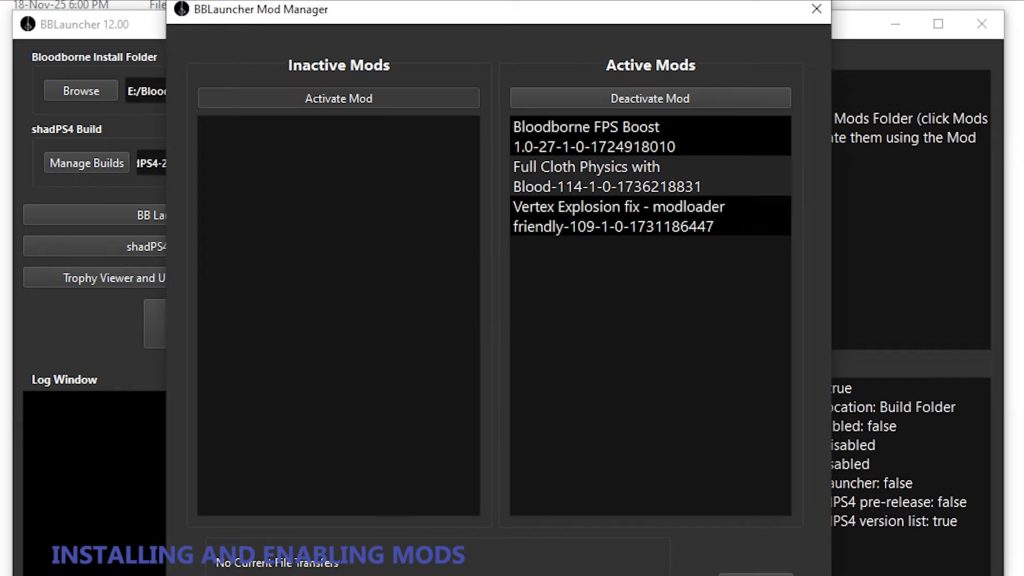
Download the BB Launcher and Mod Manager.
Open the Mod Manager and point it to your Bloodborne installation folder.
You will need to download and install specific mods such as:
Full Cloth Physics
Vertex Explosion Fix
Bloodborne FPS Boost
In the Mod Manager, move these mods from the Inactive Mods list to the Active Mods list.
Note: Ensure you use mods to completely disable SSAO and Anti-Aliasing to prevent visual noise.
Step 6: Launching Bloodborne in shadPS4
Once the mods and patches are active, launching a Bloodborne is simple:
Double-click the Bloodborne title in the library.
The launcher will open shadPS4 using your selected emulator version.
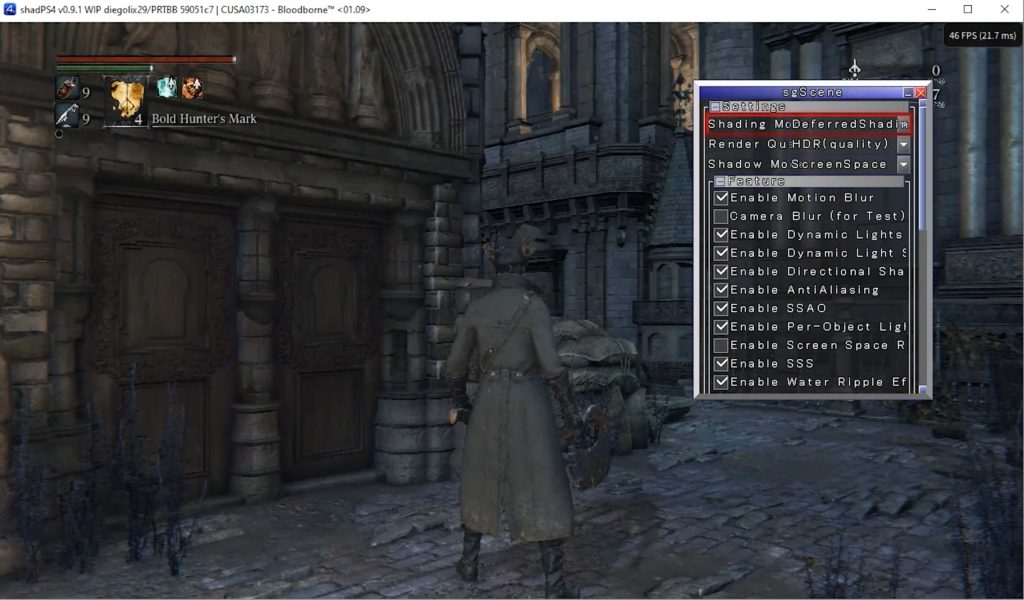
The game window opens separately, allowing you to close the game without closing the launcher, it should now render correctly with physics and lighting working as intended.
Bloodborne Full Installation Video Tutorial on ShadPS4 QtLauncher (Step-by-Step)
The shadPS4 QtLauncher is now the recommended way to run PlayStation 4 games on PC. With its simplified workflow, multi-version support, and built-in PKG installer, the launcher makes setup and gameplay easier than ever.